# Customer
A Customer is an instance of a user account under type 'CUSTOMER'. It represents all B2B(business-to-business) and B2C(business-to-consumer) Customers.
# List All Customers
- Go to the "Customers" section in the left menu.

- You will see a list of all existing customers in the application.
- The list provides essential information about each customer, such as the name, email, mobile number, account type etc.
Actioncolumn shows allowed actions for each user as per assigned roles.- There are following tabs you see on the list page.

# Add a New Customer
- Login to the EasyProcess application using your credentials.
- Click on the button to "Add New Customer".
- Customer Type: Select appropriate :
B2C (Customer is Organization)orB2B (Customer is Individual). - Navigate to the "Customer" section in the left menu.
# B2C customer (Individual)
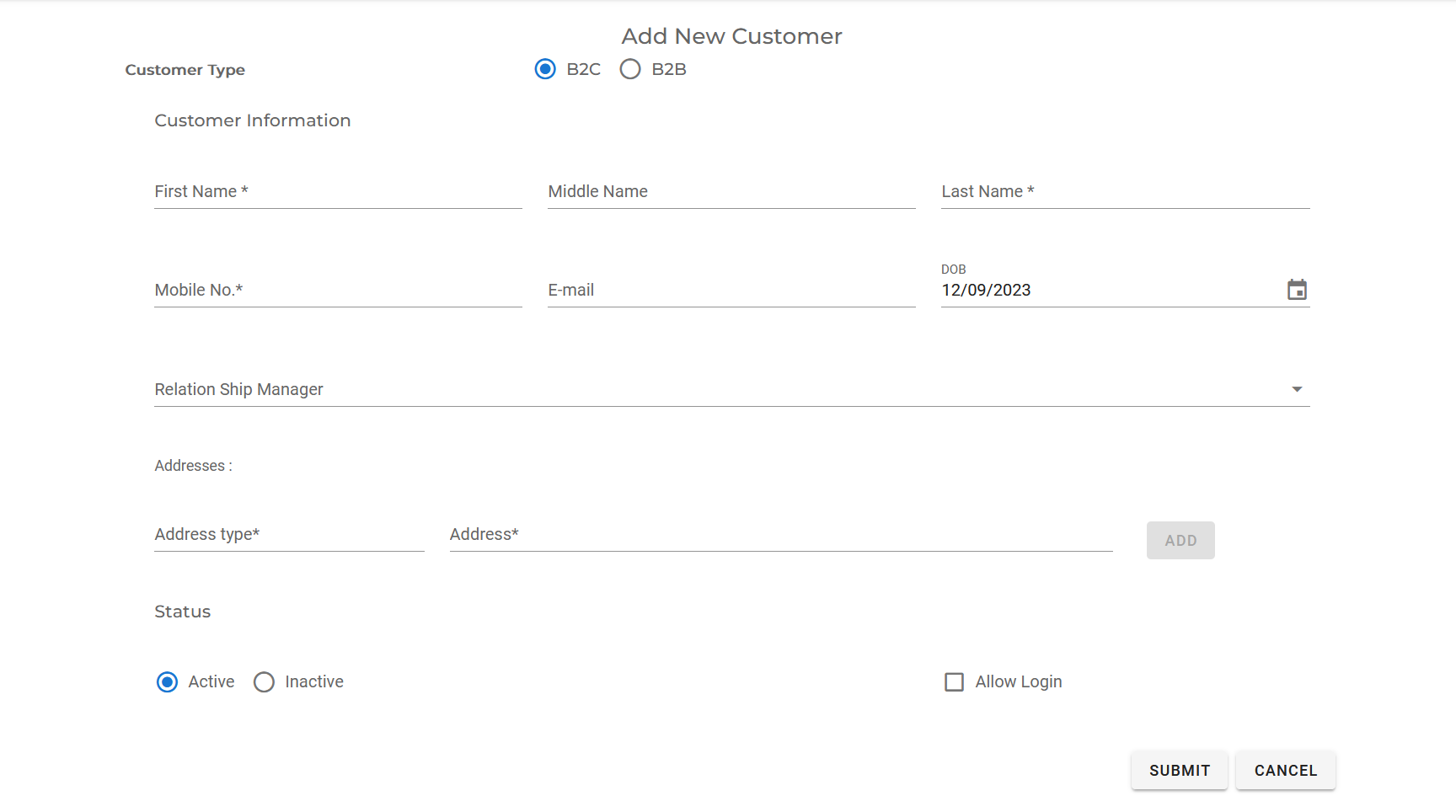
- First Name: Provide first name for the customer.
- Middle Name (Optional): Provide middle name for the customer.
- Last Name: Provide last name for the customer.
- Mobile Number: Provide correct mobile number for the customer as it will be used for user login.
- Email (Optional): Provide valid Email for the customer.
- Date of Birth (Optional): Select date of birth for the customer.
- Relation Ship Manager (Optional): Employee responsible for communication with the customer.
- Address Type (Optional): Provide appropriate address type.(home, office, factory etc.)
- Address (Optional): Complete address.
- Click on the add button to save the address details.
- Status: Set user as :
Active(Default) orINACTIVE. New Operation cannot be created for Customer withINACTIVEstatus - Allow Login:Allow customer to login to the EasyProcess application using the provided credentials.
- Username: Provide username for the customer to be used at the time of login.By default the username is mobile number.
- Password: Provide strong password.
- Confirm Password: Re-enter the password before submitting
- Click on the "Submit" button to save the new customer.
# B2B Customer (Organization)
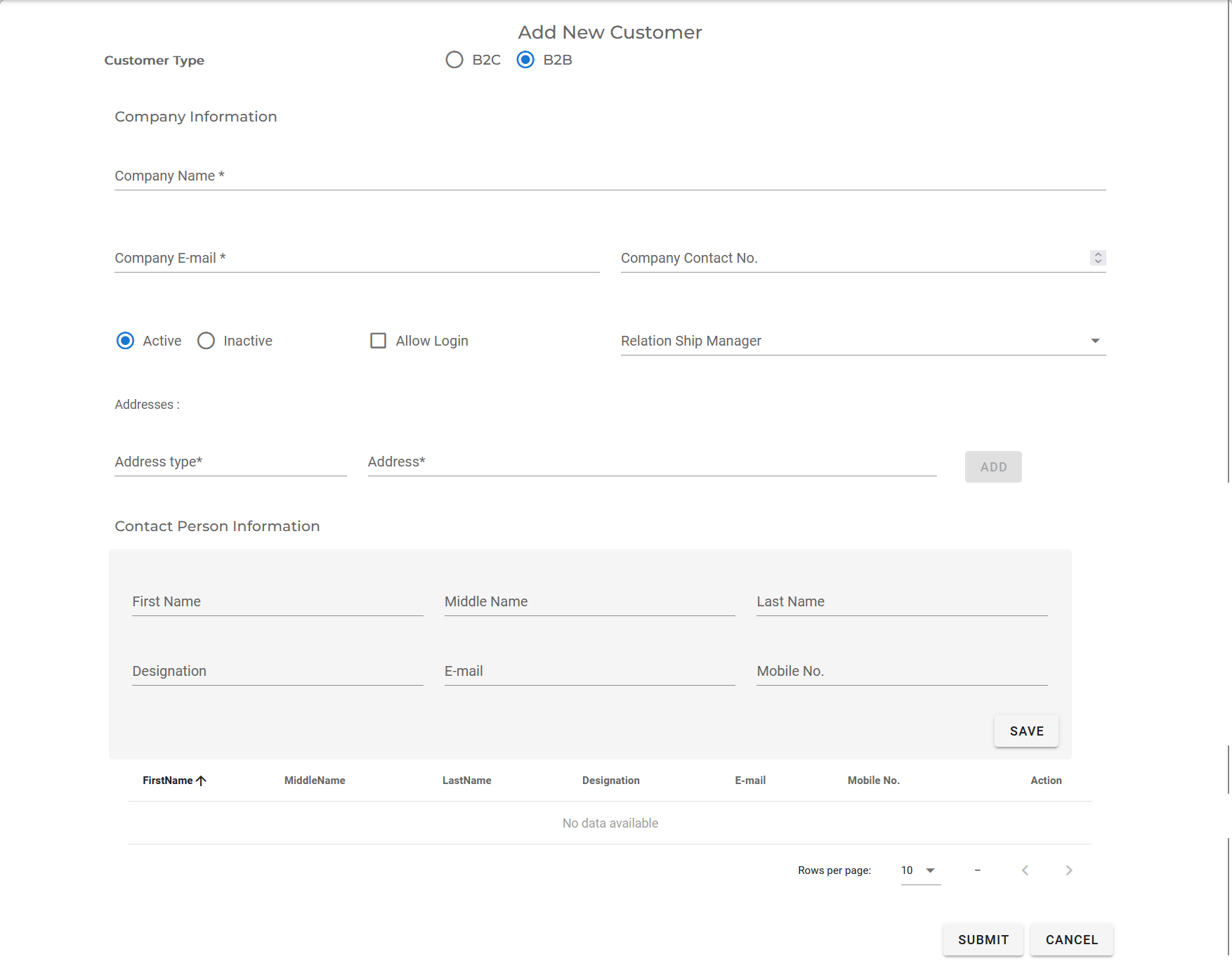
- Company Name: Provide company name for the customer.
- Company Email: Provide email for the company.
- Company Contact no (Optional): Provide contact details for the customer.
# Update an Existing Customer
- Go to the "customer" section in the left menu.
- Locate the customer you want to update from the list of existing customers.
- Click on the icon to update the customer details.
- Make the necessary changes to the customer information.
Note: ExceptCustomer typeyou can modify all the fields in the customer. - Click on the "Submit" button to apply the changes to the customer.
# Delete an Customer
- Navigate to the "Customers" section in the left menu.
- Find the customer you wish to delete from the list of existing customers.
- Click on the icon button to delete the customer you want to remove.
- A confirmation prompt will appear asking you to confirm the deletion.
- Click "OK" to delete the customer. Please note that this action is irreversible.
# View Details of an Customer
- Navigate to the "Customers" section in the left menu.
- Locate the customer you want to view from the list of existing customers.
- Click on the to access the detailed view of the customer.
- In the detailed view, you can see the operation associated with the customer, and any additional information related to the customer..
