# Employee
An employee is an instance of a accounts under type 'EMPLOYEE'.
# List All Employees
- Go to the "Employees" section in the left menu.

- You will see a list of all existing employees in the application.
- The list provides essential information about each employee, such as the name, email, phone no, emp id, active etc.
Actioncolumn shows allowed actions for each user as per assigned roles.One click shift ..
..
To know more about this action refer here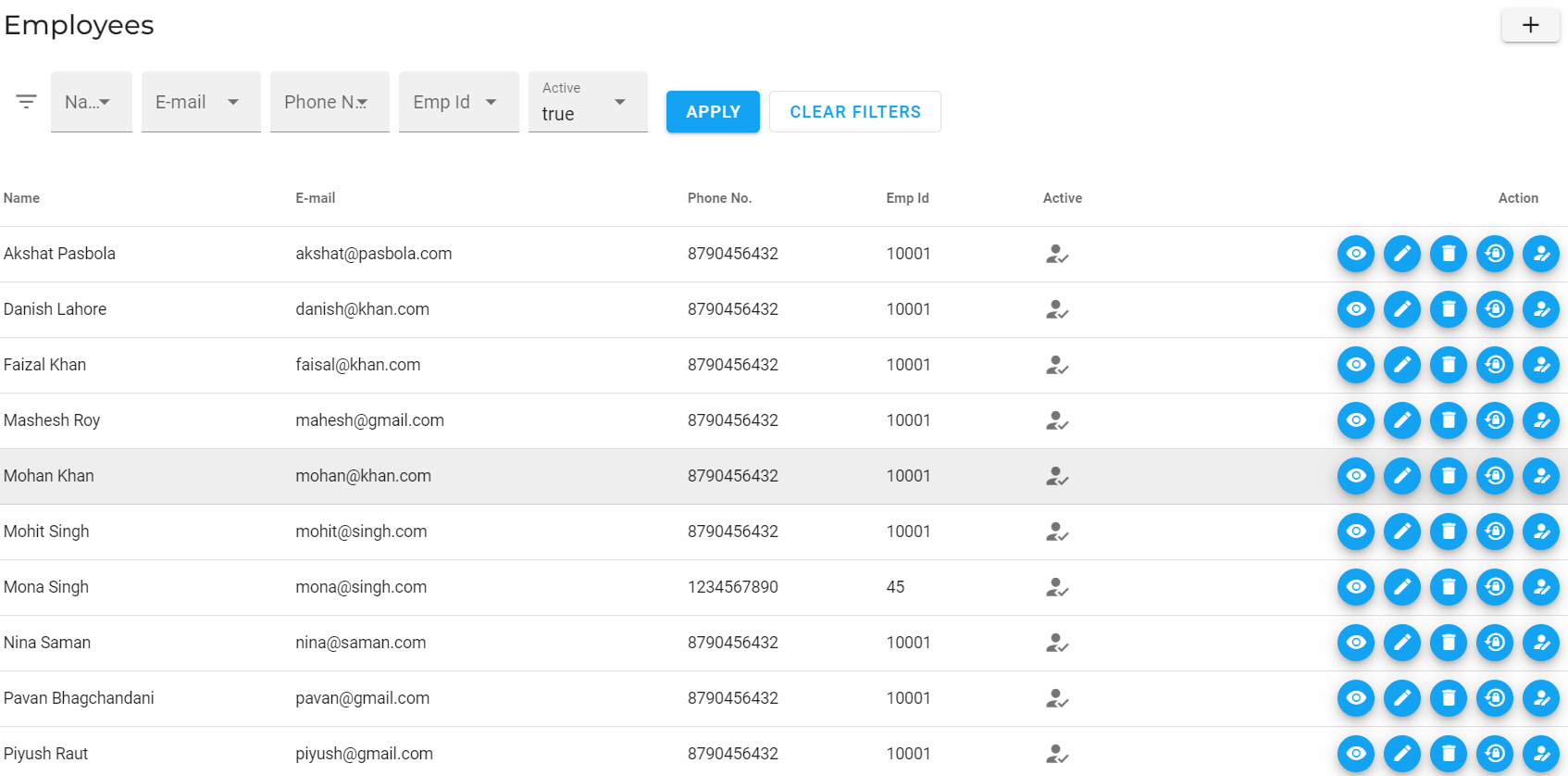
# Add a New Employee
 1. Login to the EasyProcess application using your credentials.
1. Navigate to the "Employees" section in the left menu.
1. Login to the EasyProcess application using your credentials.
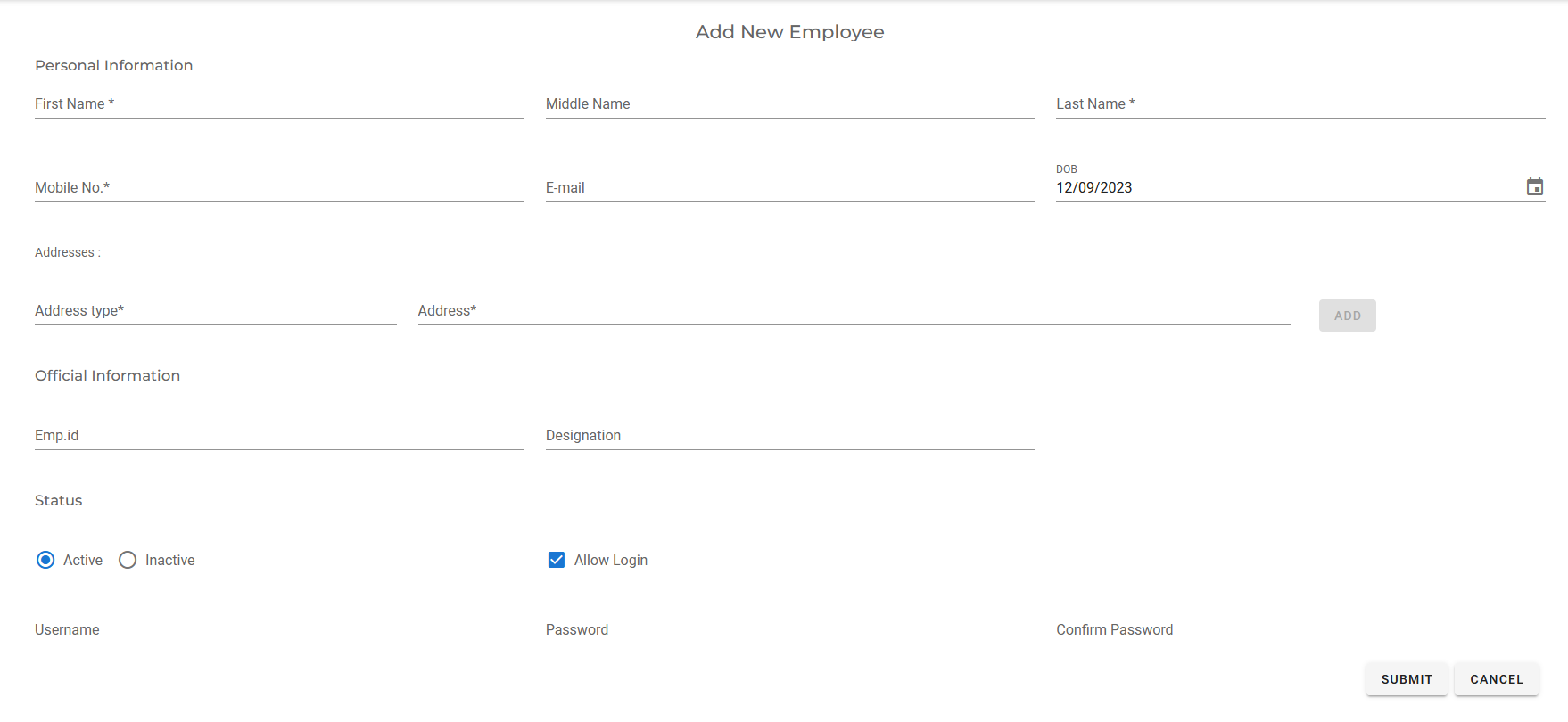
1. Navigate to the "Employees" section in the left menu. - Click on the button to "Create New Employee".
- First Name: Provide first name for the employee.
- Middle Name (Optional): Provide middle name for the employee.
- Last Name: Provide last name for the employee.
- Mobile Number: Provide unique mobile number for the employee as it will be used as username.
- Email (Optional): Provide valid Email for the employee.
(Though this field is optional, we suggest to provide email id for employee. This will help them to receive daily tasks emails on this email id.)
- Date of Birth(Optional): Select date of birth for the employee.
- Address Type(Optional): Provide appropriate address type.(permanent address, communication address etc)
- Address(Optional): Additional information about the address.
- Status: Set user as :
ActiveorINACTIVE.You cannot assign any task to employee having statusINACTIVE - Allow Login: Allow employees to login to the EasyProcess application using the provided credentials.
- Username: Provide username for the employee to be used at the time of login.By default the username is mobile number.
- Password: Provide strong password.
- Confirm Password: Re-enter the password before submitting
- Click on the "Submit" button to save the new employee.
# Update an Existing Employee
- Go to the "Employees" section in the left menu.
- Locate the employee you want to update from the list of existing employees.
- Click on the icon to update the employee details.
- Make the necessary changes to the employee information.
Note: ExceptEmp Idyou can modify all the fields in the employee. - Click on the "Submit" button to apply the changes to the employee.
# Delete an Employee
- Navigate to the "Employees" section in the left menu.
- Find the employee you wish to delete from the list of existing employees.
- Click on the icon button to delete the employee you want to remove.
- A confirmation prompt will appear asking you to confirm the deletion.
- Click "OK" to delete the employee. Please note that this action is irreversible.
# View Details of an Employee
- Navigate to the "Employees" section in the left menu.
- Locate the employee you want to view from the list of existing employees.
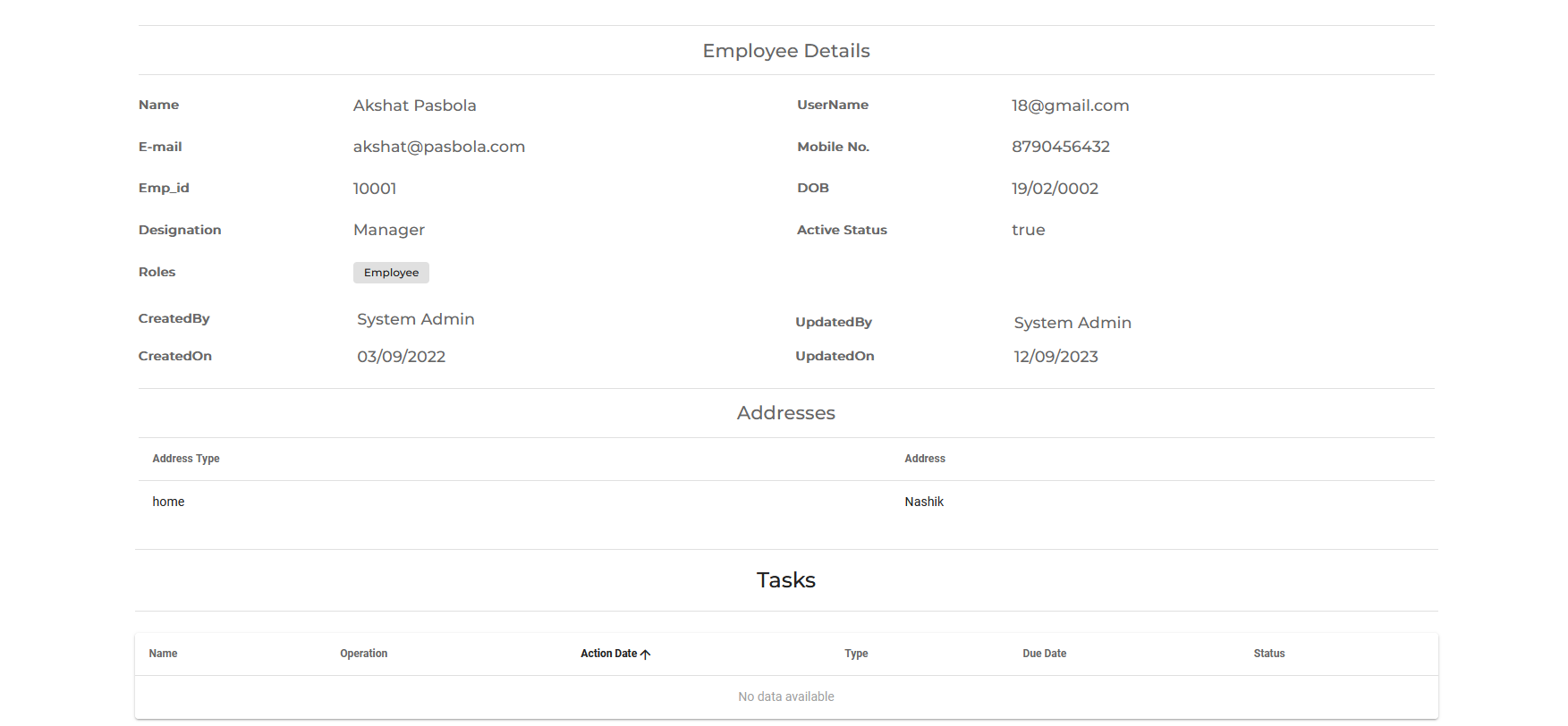
- Click on the to access the detailed view of the employee.
- In the detailed view, you can see the details associated with the employee, assigned tasks history, and any additional information related to the employee.
# Reassigning Current Tasks
- This Action is used to assign all current tasks to another employee .
- Once clicked a selection Dialog will open
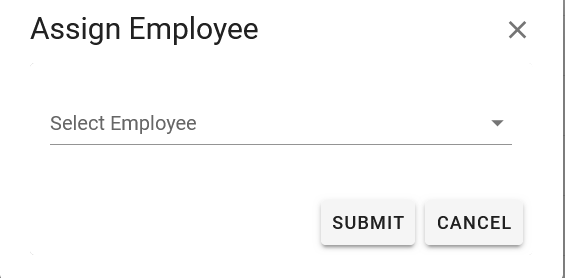 .
. - After employee selection all task assigned to current employee will be asssigned to the selected employee.