# Operation
An operation is an instance of a process. It represents a execution of a process with specific inputs and outputs. Each operation follows the defined steps of the associated process.
# List All Operations
- Go to the "Operations" section in the left menu.

- You will see a list of all existing operations in the application.
- The list provides essential information about each operation, such as the name, customer, process, start date, expiry date, workspace, owner, status etc.
Actioncolumn shows allowed actions for each user as per assigned roles.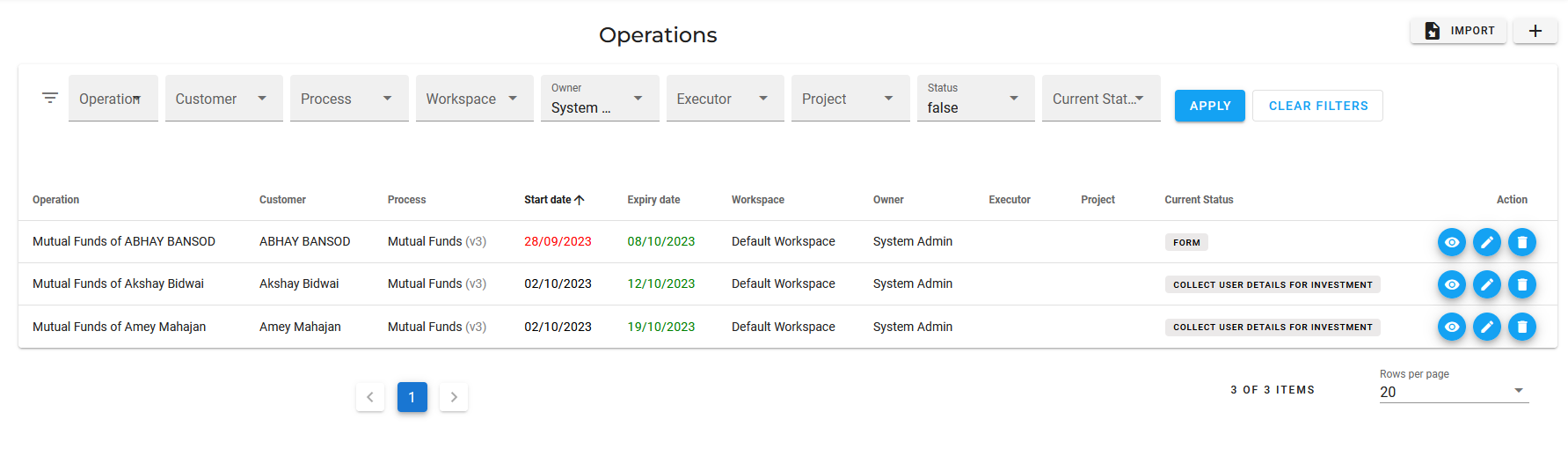
# Add a New Operation
 1. Login to the EasyProcess application using your credentials.
1. Navigate to the "Operations" section in the left menu.
1. Login to the EasyProcess application using your credentials.
1. Navigate to the "Operations" section in the left menu. - Click on the button to "Create New Operation".
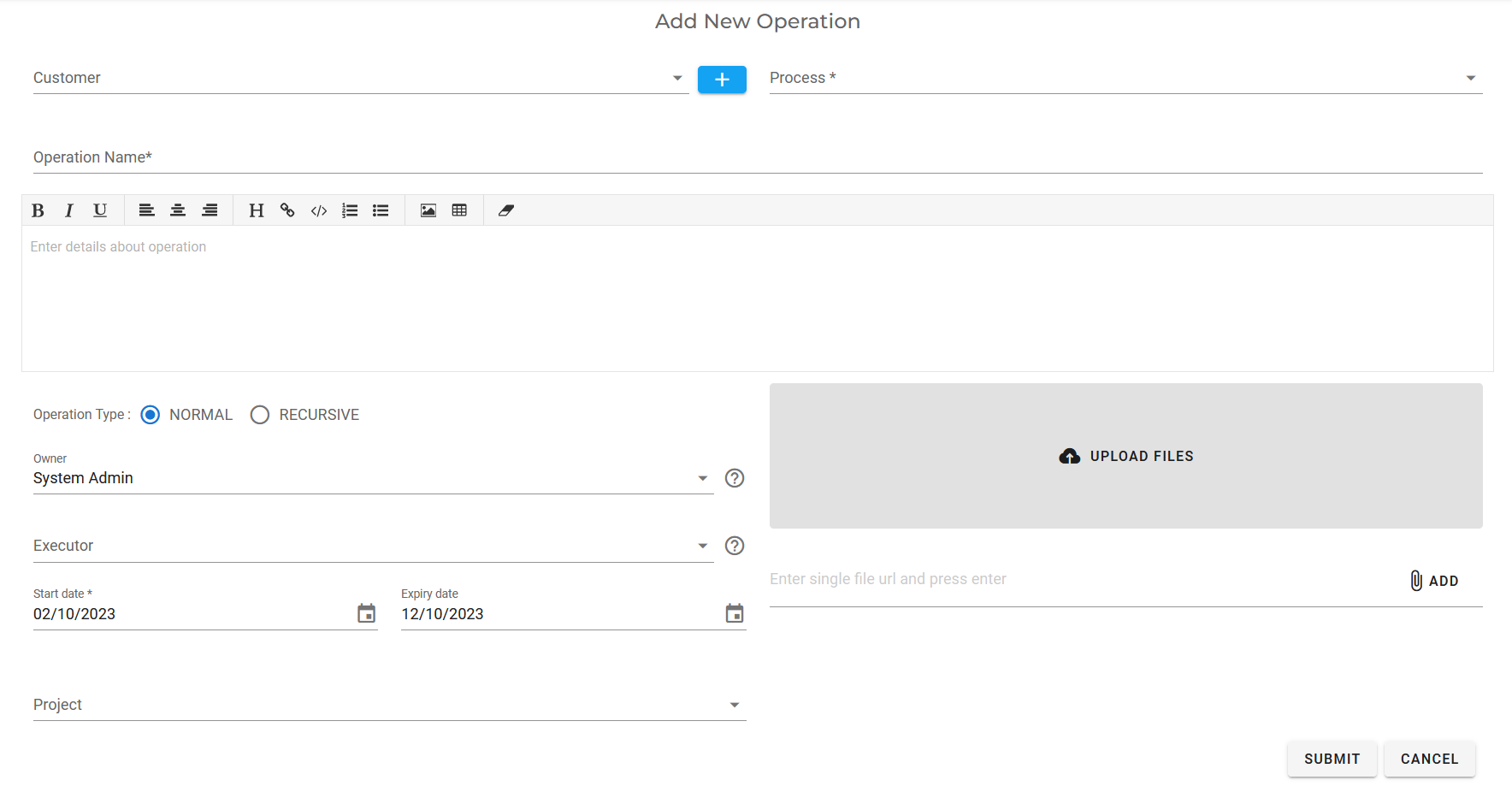
- Customer: Search customer from customers already created. If you don't find the customer in the list, application will show option to create new customer in this format.

Alternatively you can click on the button to create new customer. To know more about Create Customer please refer here. - Process: Select desired process from the list of predefined processes.
- Operation name: Provide a meaningful and descriptive name for the operation. This will help you easily identify the operation later. By default title is suggested in "
process nameofcustomer name" format. - Description (Optional): Provide some additional information about the operation in description.
- Operation Type Select appropriate :
NORMALorRECURSIVE.NORMALis default value. To know more about Process Types please refer here. - Owner: By default the User creating operation will be considered as Owner of the Operation. You can change owner by selecting other User. Operation Owner is the person who is responsible to get this operation completed.
- Executor (Optional): You can select any existing user as Executor. Operation Executor is the user to whom all the task of the operation will be assigned. This option will override the users/group defined in the process.
- Start Date: By default, today's date will be used as the Start Date. However, you have the option to provide any future date. The Start Date is the date when you are expected to start the operation. The first task for this operation is created with the provided date as the Start Date. For example, suppose today is August 1st, and you received a lead from a customer named X who is interested in your service. You are supposed to call him after 2 days. In this case, your start date would be August 3rd.
- Expiry Date: Expiry Date is the date the operation needs to be completed.By default, expiry date is calculated by the processing time of the selected process.However, you have the option to provide any future date.For example, if the processing time of the selected process is 4 Days and the Start Date is 2nd August then the Expiry Date will be set to 6th August.If no processing time is defined in the process then the default Expiry Date will be 10 days from the Start Date.For example, if the Start Date is 2nd August then then the expiry date will be 12th August.
- Upload / Links: If you have any supporting documents that you want to share with the user who will be working on this operation, you can attach the document by selecting it from your local machine or provide the URL of the storage where it is uploaded.
- Click on the "Submit" button to save the new operation.
# Update an Existing Operation
- Go to the "Operations" section in the left menu.
- Locate the operation you want to update from the list of existing operations.
- Click on the icon to update the operation details.
- Make the necessary changes to the operation information.
Note: ExceptCustomer&Processyou can modify all the fields in the operation. - Click on the "Submit" button to apply the changes to the operation.
# Delete an Operation
- Navigate to the "Operations" section in the left menu.
- Find the operation you wish to delete from the list of existing operations.
- Click on the icon button to delete the operation you want to remove.
- A confirmation prompt will appear asking you to confirm the deletion.
- Click "OK" or "Confirm" to delete the operation. Please note that this action is irreversible.
# View Details of an Operation
- Navigate to the "Operations" section in the left menu.
- Locate the operation you want to view from the list of existing operations.
- Click on the to access the detailed view of the operation.
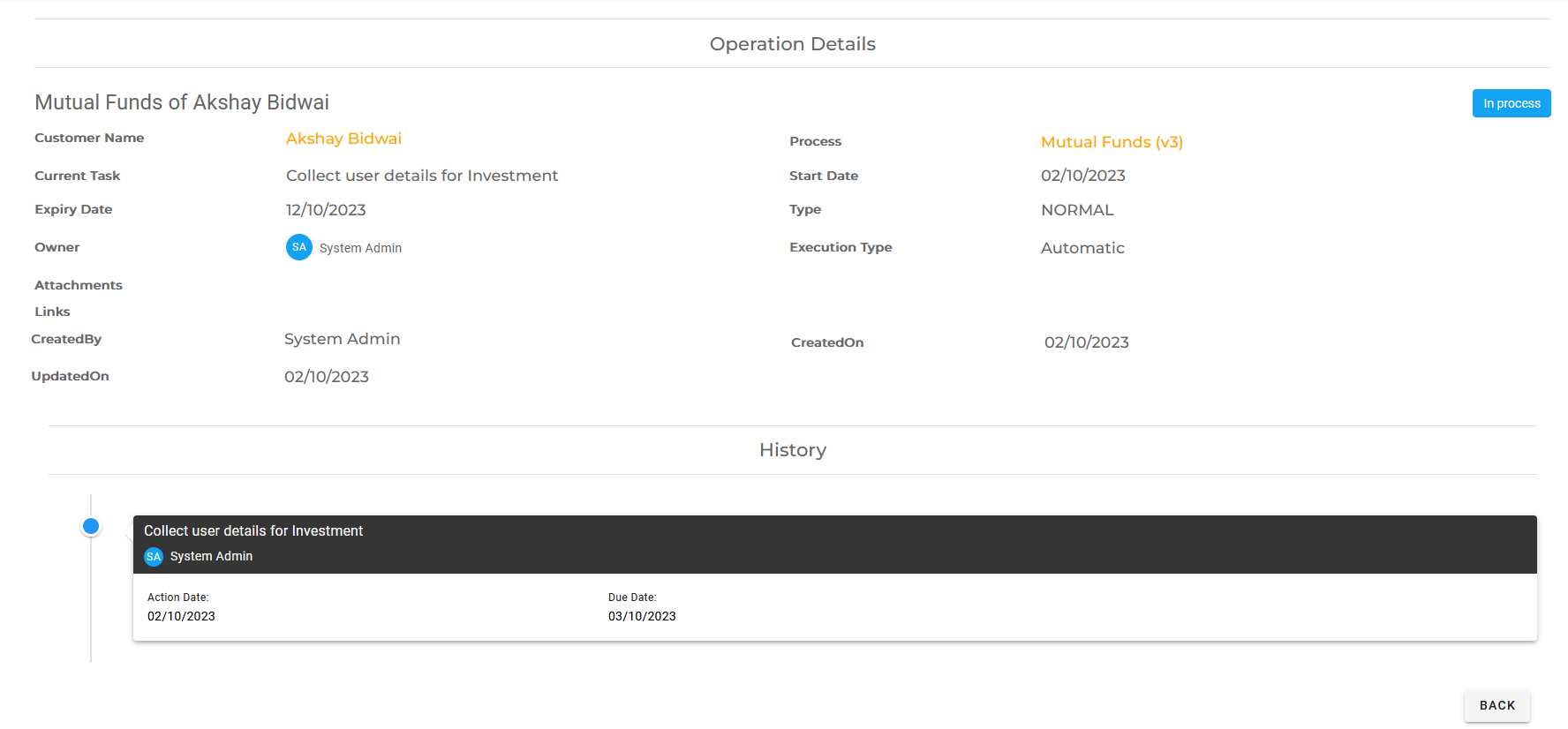
- In the detailed view, you can see the process associated with the operation, tasks history, and any additional information related to the operation.
You can navigate to Customer details page or Process details page by clicking on the respective text. By clicking on Task user can navigate to Update Task page.
Note: Text with orange color indicates link to respective information.